Getting started
Setting up Lucca for the first time
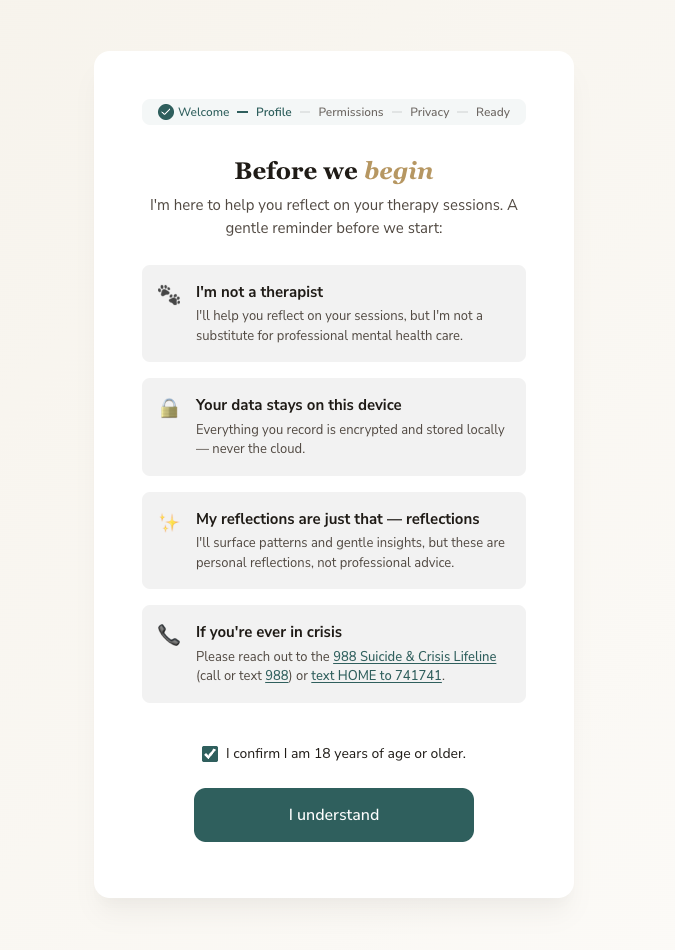
Setup takes about five minutes: download the app, open it, grant microphone access, and Lucca is ready to record your next session. Everything stays on your Mac — your recordings, transcripts, and AI insights never leave your device.
Download Lucca
Click below to download Lucca. You'll need the email you were invited with — if you haven't verified it yet, we'll ask for it first.
When the download finishes, open the Lucca.dmg file in your Downloads folder.
Install it
In the window that opens, drag the Lucca icon onto the Applications folder. Then open your Applications folder and double-click Lucca to launch it.
Sign in
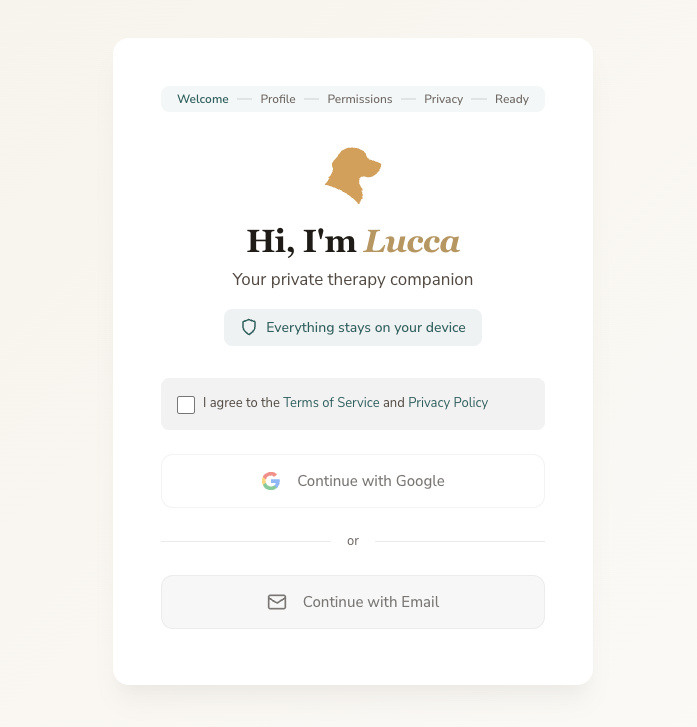
Sign in with Google or your email to create your account. Your account is just for access — your therapy data still stays on your device.
Grant microphone access
When Lucca asks for the microphone, click Allow — that's how it records your sessions.
To check it later, go to System Settings → Privacy & Security → Microphone and confirm Lucca is switched on. While you're there, System Settings → Sound lets you confirm the input device is the microphone you'll actually use in session.
Let Lucca finish setting up
On first launch, Lucca downloads its private AI model once (around 5 GB, a bit larger on higher-memory Macs). It runs in the background, so you can keep going while it finishes. This one-time download is what lets all the AI run on your device instead of the cloud.
Record your first session
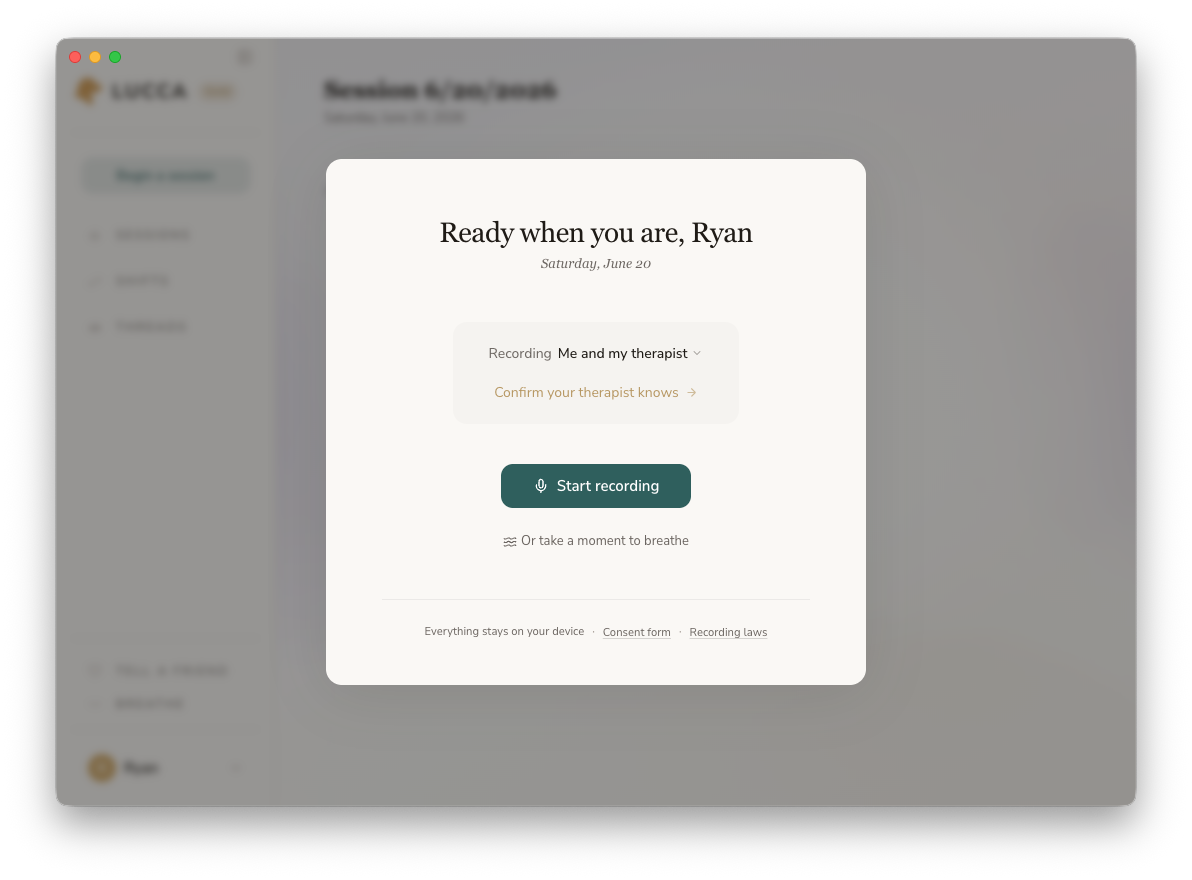
You're ready. When your session starts, open Lucca and press Record. A couple of things worth knowing:
- Tell your therapist before you record. Lucca walks you through this — the rules vary by where you live.
- Lucca transcribes as you go, and after the session it generates a private reflection and insights, just for you.
What stays on your Mac
Recording, transcription, and every AI insight happen on your device. Nothing is sent to the cloud. You can export or delete all of your data anytime from Settings → Privacy.
If something goes wrong
You won't break anything, and your recordings are safe. If you get stuck, reach out: hello@meetlucca.com. Honestly, hearing where Lucca trips you up is the most useful thing you can give us right now.